Next.js error tracking installation
- 1
Install the package
RequiredInstall the PostHog JavaScript library using your package manager:
- 2
Add environment variables
RequiredAdd your PostHog API key and host to your
.env.localfile and to your hosting provider (e.g. Vercel, Netlify). These values need to start withNEXT_PUBLIC_to be accessible on the client-side..env.local - 3
Initialize PostHog
RequiredChoose the integration method based on your Next.js version and router type.
If you're using Next.js 15.3+, you can use
instrumentation-client.tsfor a lightweight, fast integration:instrumentation-client.tsFor the App router, create a
providers.tsxfile in yourappfolder. Theposthog-jslibrary needs to be initialized on the client-side using the'use client'directive:app/providers.tsxThen import the
PostHogProvidercomponent in yourapp/layout.tsxand wrap your app with it:app/layout.tsxFor the Pages router, integrate PostHog at the root of your app in
pages/_app.tsx:pages/_app.tsxDefaults optionThe
defaultsoption automatically configures PostHog with recommended settings for new projects. See SDK defaults for details. - 4
Accessing PostHog on the client
RecommendedOnce initialized in
instrumentation-client.ts, importposthogfromposthog-jsanywhere and call the methods you need:app/checkout/page.tsxUse the
usePostHoghook to access PostHog in client components:app/checkout/page.tsx - 5
Capture client-side exceptions
RequiredPostHog can automatically capture unhandled exceptions in your Next.js app using the JavaScript Web SDK.
You can enable exception autocapture for the JavaScript Web SDK in the Error tracking section of your project settings.
It is also possible to manually capture exceptions using the
captureExceptionmethod:Manual capture is very useful if you already use error boundaries to handle errors in your app:JavaScriptNext.js uses error boundaries to handle uncaught exceptions by rendering a fallback UI instead of the crashing components. To set one up, create a
error.tsxfile in any of your route directories. This triggers when there is an error rendering your component and should look like this:error.tsxYou can also create a Global Error component in your root layout to capture unhandled exceptions in your root layout.
app/global-error.tsxFor Pages Router, you can use React's Error Boundaries to catch JavaScript errors anywhere in the component tree. Create a custom error boundary component and report errors to PostHog in the
componentDidCatchmethod:components/ErrorBoundary.tsxThen wrap your app or specific components with the error boundary:
pages/_app.tsx - 6
Installing PostHog SDK for server-side
RequiredNext.js enables you to both server-side render pages and add server-side functionality. To integrate PostHog into your Next.js app on the server-side, you can use the Node SDK.
First, install the
posthog-nodelibrary:For the backend, we can create a
lib/posthog-server.jsfile. In it, initialize PostHog fromposthog-nodeas a singleton with your project token and host from your project settings.This looks like this:
lib/posthog-server.jsYou can now use the
getPostHogServerfunction to capture exceptions in server-side code.JavaScript Verify server-side exceptions
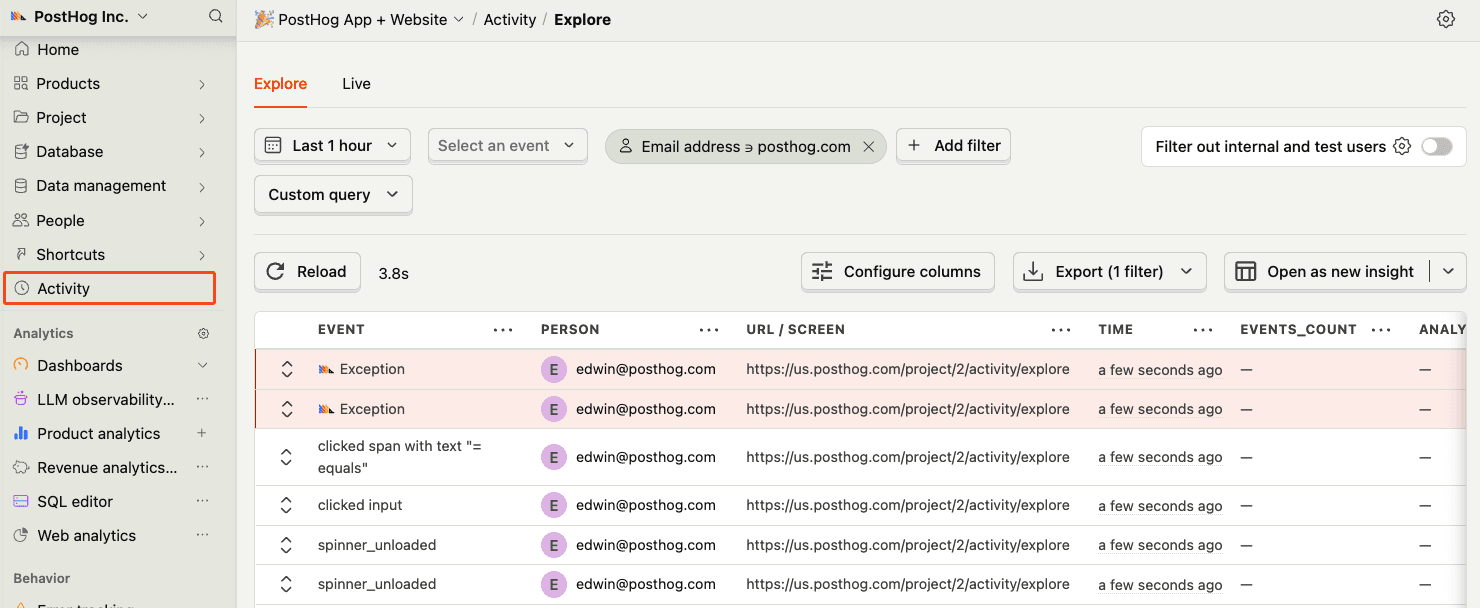
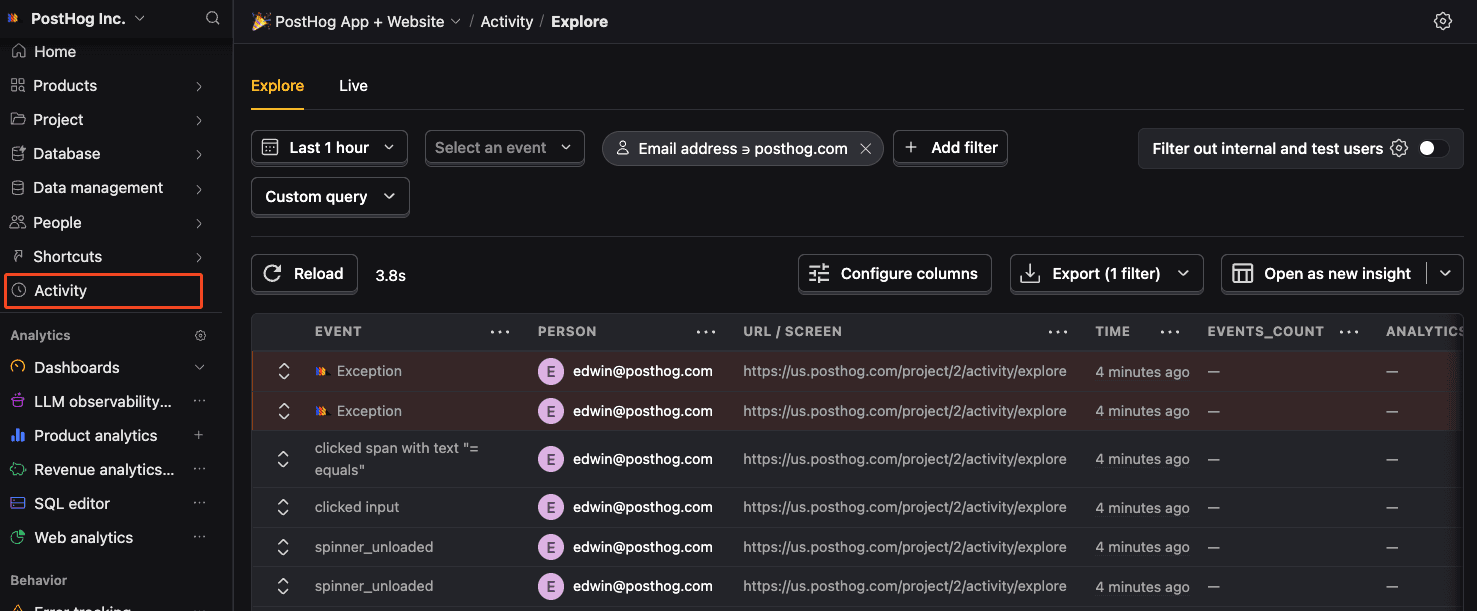
RecommendedYou should also see events and exceptions in PostHog coming from your server-side code in the activity feed.
- 7
Capturing server-side exceptions
RequiredTo capture errors that occur in your server-side code, you can set up an
instrumentation.tsfile at the root of your project. This provides aonRequestErrorhook that you can use to capture errors.Importantly, you need to:
- Set up a
posthog-nodeclient in your server-side code. See our doc on setting up Next.js server-side analytics for more. - Check the request is running in the
nodejsruntime to ensure PostHog works. You can callposthog.debug()to get verbose logging. - Get the
distinct_idfrom the cookie to connect the error to a specific user.
This looks like this:
JavaScriptYou can find a full example of both this and client-side error tracking in our Next.js error monitoring tutorial.
- Set up a
- 8